Celia Garcia Marquez
November 29, 2020
Configurar HTTPS con Let's Encrypt en un servidor con Nginx
Warning: This information may be outdated. Please note the date of the post.
HTTPS (Seguridad)
Objetivo:
Vamos a configurar el protocolo HTTPS para el acceso a nuestras aplicaciones, para ello tienes que tener en cuenta los siguiente.
1. Vamos a utilizar el servicio letsencrypt para solicitar los certificados de nuestras páginas.
Let’s Encrypt se trata de una autoridad de certificación, conocida como CA, libre y gratuita, que permite generar certificados SSL gratuitos y automáticos para nuestros sitios web, con el objetivo de promover que el tráfico de Internet sea seguro.
2. Explica detenidamente cómo se solicita un certificado en Let’s Encrypt. En tu explicación deberás responder a estas preguntas:
¿Qué función tiene el cliente ACME?
El cliente ACME permite automatizar la implementación de certificados SSL/TLS y eliminar el tiempo que pasa llevando a cabo las instalaciones de certificados manualmente.
¿Qué configuración se realiza en el servidor web?
Se toma una configuración para proteger el sitio web de tal manera que, autogenera un certificado y una clave para asegurar nuestro sitio y añade los puertos de escucha al 443 que son los necesarios para el sistema de seguridad ssl.
¿Qué pruebas realiza Let’s Encrypt para asegurar que somos los administrados del sitio web?
Let’s Encrypt identifica el administrador del servidor por la llave pública. La primera vez que el software del agente interactúa con este, genera un par de claves y demuestra a Let’s Encrypt que el servidor controla uno o más dominios.
Puede demostrar el control sobre el dominio de dos formas, aprovisionando de un recurso HTTP en un fichero (well-known URI) o aprovisionando un record DNS.
¿Se puede usar el DNS para verificar que somos administradores del sitio?
Sí. Crea un registro en el DNS con una determinada información que permite verificar que somos administradores del sitio.
Para solicitar un certificado en Let’s Encrypt necesitamos una herramienta (el agente cerbot): Cerbot que será el que permita su obtención. Para ello vamos a instalar esta herramienta, con el plugin para nginx.
Instalar cerbot
nano /etc/apt/sources.list
# Agregamos:
deb http://ftp.debian.org/debian buster-backports main
# Actualizamos:
apt-get update
# Instalamos:
apt install python-certbot-nginx -t buster-backports
Obtener Certificado
Ejecutamos
cerbot --nginx -d www.iesgn05.es
Como es la primera vez que iniciamos cerbot nos pedirá un correo electrónico y que aceptemos las condiciones y términos.
Tendremos decirle que todas las peticiones las redirija a un https y ya tendremos nuestro certificado.
root@kiara:/home/debian# certbot --nginx -d www.iesgn05.es
Saving debug log to /var/log/letsencrypt/letsencrypt.log
Plugins selected: Authenticator nginx, Installer nginx
Enter email address (used for urgent renewal and security notices) (Enter 'c' to
cancel): cg.marquez95@gmail.com

- - - - - - - - - - - - - - - - - - - - - - - - - - - - - - - - - - - - - - - -
Please read the Terms of Service at
https://letsencrypt.org/documents/LE-SA-v1.2-November-15-2017.pdf. You must
agree in order to register with the ACME server at
https://acme-v02.api.letsencrypt.org/directory
- - - - - - - - - - - - - - - - - - - - - - - - - - - - - - - - - - - - - - - -
(A)gree/(C)ancel: A

- - - - - - - - - - - - - - - - - - - - - - - - - - - - - - - - - - - - - - - -
Would you be willing to share your email address with the Electronic Frontier
Foundation, a founding partner of the Let's Encrypt project and the non-profit
organization that develops Certbot? We'd like to send you email about our work
encrypting the web, EFF news, campaigns, and ways to support digital freedom.
- - - - - - - - - - - - - - - - - - - - - - - - - - - - - - - - - - - - - - - -
(Y)es/(N)o: Y
Obtaining a new certificate
Performing the following challenges:
http-01 challenge for www.iesgn05.es
Waiting for verification...
Cleaning up challenges
Deploying Certificate to VirtualHost /etc/nginx/sites-enabled/iesgn05

Please choose whether or not to redirect HTTP traffic to HTTPS, removing HTTP access.
- - - - - - - - - - - - - - - - - - - - - - - - - - - - - - - - - - - - - - - -
1: No redirect - Make no further changes to the webserver configuration.
2: Redirect - Make all requests redirect to secure HTTPS access. Choose this for
new sites, or if you're confident your site works on HTTPS. You can undo this
change by editing your web server's configuration.
- - - - - - - - - - - - - - - - - - - - - - - - - - - - - - - - - - - - - - - -
Select the appropriate number [1-2] then [enter] (press 'c' to cancel): 2
Redirecting all traffic on port 80 to ssl in /etc/nginx/sites-enabled/iesgn05

- - - - - - - - - - - - - - - - - - - - - - - - - - - - - - - - - - - - - - - -
Congratulations! You have successfully enabled https://www.iesgn05.es

You should test your configuration at:
https://www.ssllabs.com/ssltest/analyze.html?d=www.iesgn05.es
- - - - - - - - - - - - - - - - - - - - - - - - - - - - - - - - - - - - - - - -

IMPORTANT NOTES:
 - Congratulations! Your certificate and chain have been saved at:
   /etc/letsencrypt/live/www.iesgn05.es/fullchain.pem
   Your key file has been saved at:
   /etc/letsencrypt/live/www.iesgn05.es/privkey.pem
   Your cert will expire on 2021-02-27. To obtain a new or tweaked
   version of this certificate in the future, simply run certbot again
   with the "certonly" option. To non-interactively renew *all* of
   your certificates, run "certbot renew"
 - Your account credentials have been saved in your Certbot
   configuration directory at /etc/letsencrypt. You should make a
   secure backup of this folder now. This configuration directory will
   also contain certificates and private keys obtained by Certbot so
   making regular backups of this folder is ideal.
 - If you like Certbot, please consider supporting our work by:

   Donating to ISRG / Let's Encrypt:   https://letsencrypt.org/donate
   Donating to EFF:                    https://eff.org/donate-le
Como nos dice el certificado se ha generado en la ruta /etc/letsencrypt/live/www.iesgn05.es/fullchain.pem y la clave está en /etc/letsencrypt/live/www.iesgn05.es/privkey.pem
Ahora podemos comprobar que nuestro sitio es un sitio seguro:
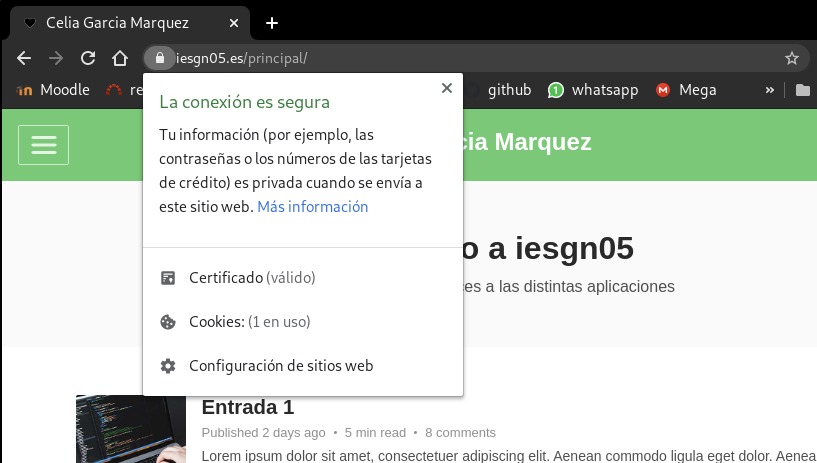
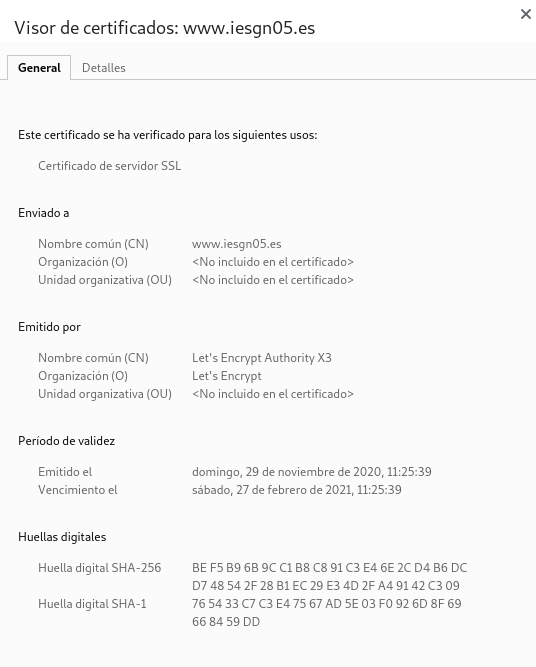
3. Utiliza dos ficheros de configuración de nginx: uno para la configuración del virtualhost HTTP y otro para la configuración del virtualhost HTTPS.
Para configurar nuestro dominio www.iesgn05.es, hemos utilizado el plugin de certbox nginx por lo que no necesitamos un segundo fichero para hacer la redirección. En el mismo fichero de configuración está la redirección.
Esto es lo que ha añadido cerbot en la configuración de nuestro fichero iesgn05
    listen [::]:443 ssl ipv6only=on; # managed by Certbot
    listen 443 ssl; # managed by Certbot
    ssl_certificate /etc/letsencrypt/live/www.iesgn05.es/fullchain.pem; # managed by Certbot
    ssl_certificate_key /etc/letsencrypt/live/www.iesgn05.es/privkey.pem; # managed by Certbot
    include /etc/letsencrypt/options-ssl-nginx.conf; # managed by Certbot
    ssl_dhparam /etc/letsencrypt/ssl-dhparams.pem; # managed by Certbot

}

server {
    if ($host = www.iesgn05.es) {
        return 301 https://$host$request_uri;
    } # managed by Certbot


        listen 80;
        listen [::]:80;

        server_name www.iesgn05.es;
    return 404; # managed by Certbot
}
portal.iesgn05.es
Sin embargo para configurar nuestro dominio portal.iesgn05.es vamos a configurar dos ficheros de configuración, uno para http y otro para https.
certbot certonly --standalone --preferred-challenges http -d portal.iesgn05.es
Vemos que se ha generado unas claves
root@kiara:/home/debian# ls /etc/letsencrypt/live/portal.iesgn05.es/
cert.pem  chain.pem  fullchain.pem  privkey.pem  README
Ahora ponemos la configuración adecuada en el fichero https de portal.iesgn05.es
root@kiara:/etc/nginx/sites-available# cat /etc/nginx/sites-available/portal.iesgn05.es
# Default server configuration
#
server {

#        listen 80;
#        listen [::]:80;

        root /var/www/portal.iesgn05.es;

        # Add index.php to the list if you are using PHP
	index index.html index.htm index.php;
        server_name portal.iesgn05.es;

  location / {

    # First attempt to serve request as file, then
    # as directory, then fall back to displaying a 404.

    try_files $uri $uri/ =404 @rewrite;

  }

  location @rewrite {

    # Some modules enforce no slash (/) at the end of the URL
    # Else this rewrite block wouldnt be needed (GlobalRedirect)

    rewrite ^/(.*)$ /index.php?q=$1;

  }

        location ~\.php$ {
               include snippets/fastcgi-php.conf;
               # With php-fpm (or other unix sockets):
               fastcgi_pass unix:/run/php/php7.3-fpm.sock;
               # With php-cgi (or other tcp sockets):
               #fastcgi_pass 127.0.0.1:9000;
        }

    listen [::]:443 ssl;
    listen 443 ssl;

    ssl_certificate /etc/letsencrypt/live/portal.iesgn05.es/fullchain.pem;
    ssl_certificate_key /etc/letsencrypt/live/portal.iesgn05.es/privkey.pem;

    include /etc/letsencrypt/options-ssl-nginx.conf;
    ssl_dhparam /etc/letsencrypt/ssl-dhparams.pem;

}
4. Realiza una redirección o una reescritura para que cuando accedas a HTTP te redirija al sitio HTTPS.
Fichero de configuración para http portal.iesgn05.es.http
root@kiara:/etc/nginx/sites-available# cat /etc/nginx/sites-available/portal.iesgn05.es.http
# Default server configuration
#
server {
    listen 80;
    listen [::]:80;
    server_name portal.iesgn05.es;
    return 301 https://portal.iesgn05.es$request_uri;
}
5. Comprueba que se ha creado una tarea cron que renueva el certificado cada 3 meses.
0 3 * * * certbot --nginx renew >/dev/null 2>&1
Lo comprobamos haceiendo una simulacion
root@kiara:/etc/nginx/sites-available# certbot renew --dry-run
Saving debug log to /var/log/letsencrypt/letsencrypt.log

- - - - - - - - - - - - - - - - - - - - - - - - - - - - - - - - - - - - - - - -
Processing /etc/letsencrypt/renewal/portal.iesgn05.es.conf
- - - - - - - - - - - - - - - - - - - - - - - - - - - - - - - - - - - - - - - -
Cert not due for renewal, but simulating renewal for dry run
Plugins selected: Authenticator nginx, Installer nginx
Renewing an existing certificate
Performing the following challenges:
http-01 challenge for portal.iesgn05.es
Waiting for verification...
Cleaning up challenges

- - - - - - - - - - - - - - - - - - - - - - - - - - - - - - - - - - - - - - - -
new certificate deployed with reload of nginx server; fullchain is
/etc/letsencrypt/live/portal.iesgn05.es/fullchain.pem
- - - - - - - - - - - - - - - - - - - - - - - - - - - - - - - - - - - - - - - -

- - - - - - - - - - - - - - - - - - - - - - - - - - - - - - - - - - - - - - - -
Processing /etc/letsencrypt/renewal/www.iesgn05.es.conf
- - - - - - - - - - - - - - - - - - - - - - - - - - - - - - - - - - - - - - - -
Cert not due for renewal, but simulating renewal for dry run
Plugins selected: Authenticator nginx, Installer nginx
Renewing an existing certificate
Performing the following challenges:
http-01 challenge for www.iesgn05.es
Waiting for verification...
Cleaning up challenges

- - - - - - - - - - - - - - - - - - - - - - - - - - - - - - - - - - - - - - - -
new certificate deployed with reload of nginx server; fullchain is
/etc/letsencrypt/live/www.iesgn05.es/fullchain.pem
- - - - - - - - - - - - - - - - - - - - - - - - - - - - - - - - - - - - - - - -

- - - - - - - - - - - - - - - - - - - - - - - - - - - - - - - - - - - - - - - -
** DRY RUN: simulating 'certbot renew' close to cert expiry
**          (The test certificates below have not been saved.)

Congratulations, all renewals succeeded. The following certs have been renewed:
  /etc/letsencrypt/live/portal.iesgn05.es/fullchain.pem (success)
  /etc/letsencrypt/live/www.iesgn05.es/fullchain.pem (success)
** DRY RUN: simulating 'certbot renew' close to cert expiry
**          (The test certificates above have not been saved.)
- - - - - - - - - - - - - - - - - - - - - - - - - - - - - - - - - - - - - - - -

IMPORTANT NOTES:
 - Your account credentials have been saved in your Certbot
   configuration directory at /etc/letsencrypt. You should make a
   secure backup of this folder now. This configuration directory will
   also contain certificates and private keys obtained by Certbot so
   making regular backups of this folder is ideal.
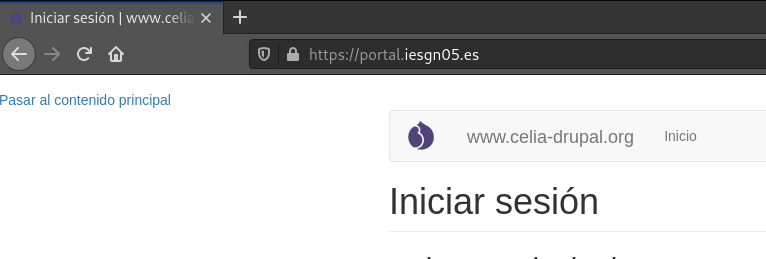
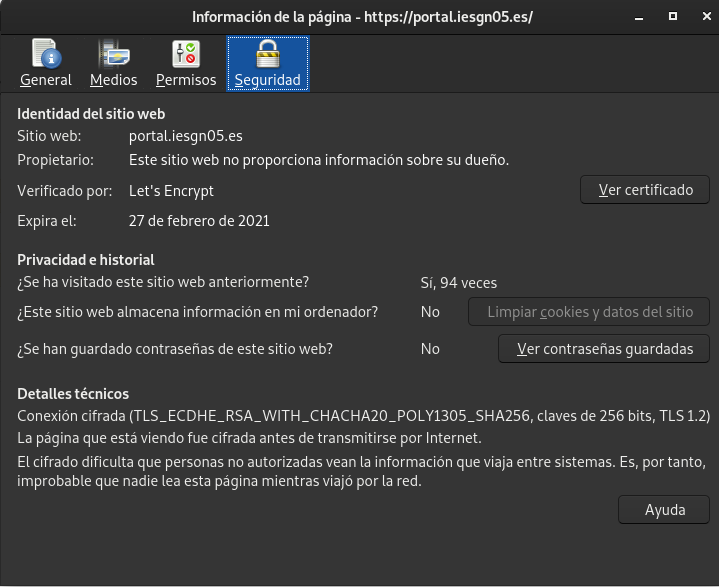
6. Comprueba que las páginas son accesible por HTTPS y visualiza los detalles del certificado que has creado.
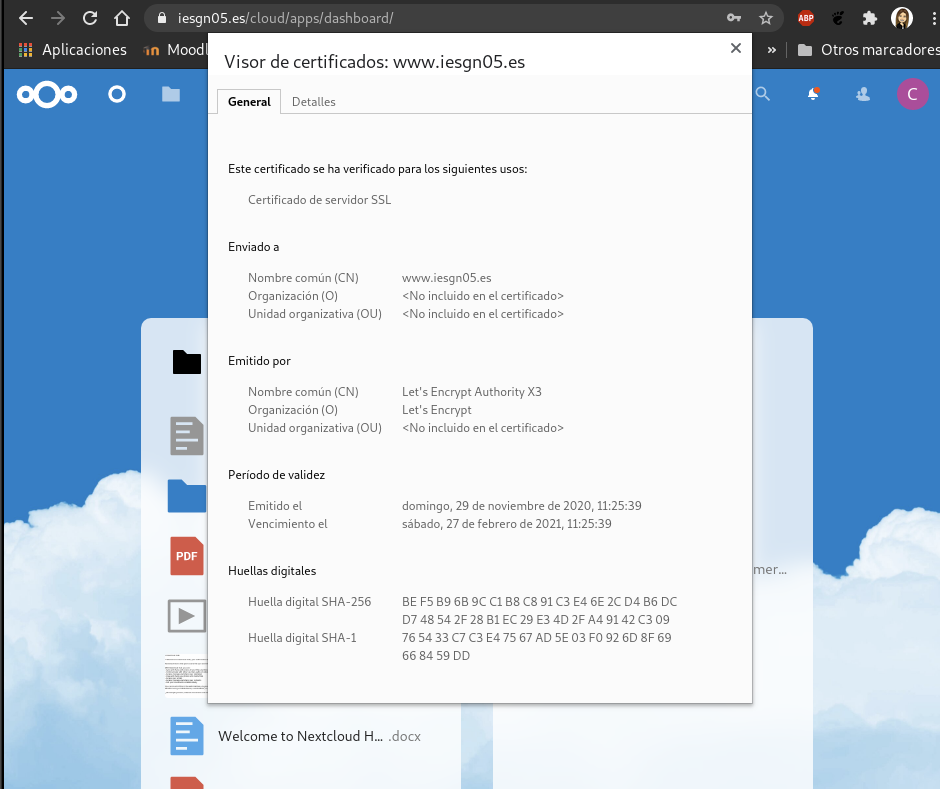
portal.iesgn05.es
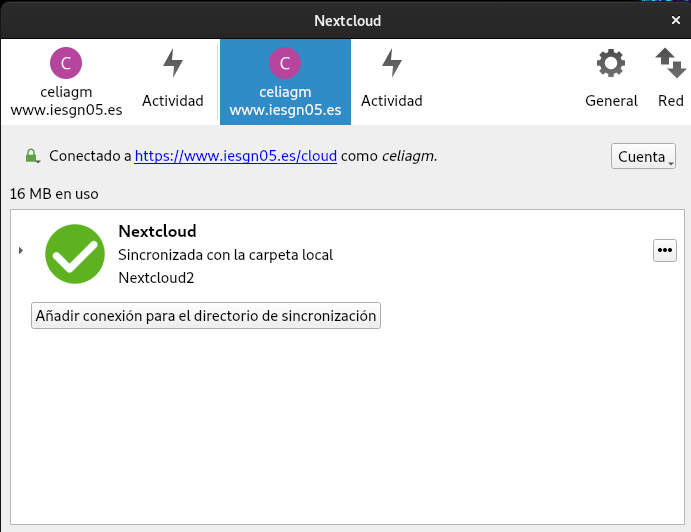
7. Modifica la configuración del cliente de Nextcloud para comprobar que sigue en funcionamiento con HTTPS.
Eliminamos la sincronización existente y añadimos una nueva para que se haga correctamente la redirección a https