Celia Garcia Marquez
January 13, 2021
Servidor Web Apache2 (httpd) en Centos8
Warning: This information may be outdated. Please note the date of the post.
1. Descripción de la tarea:
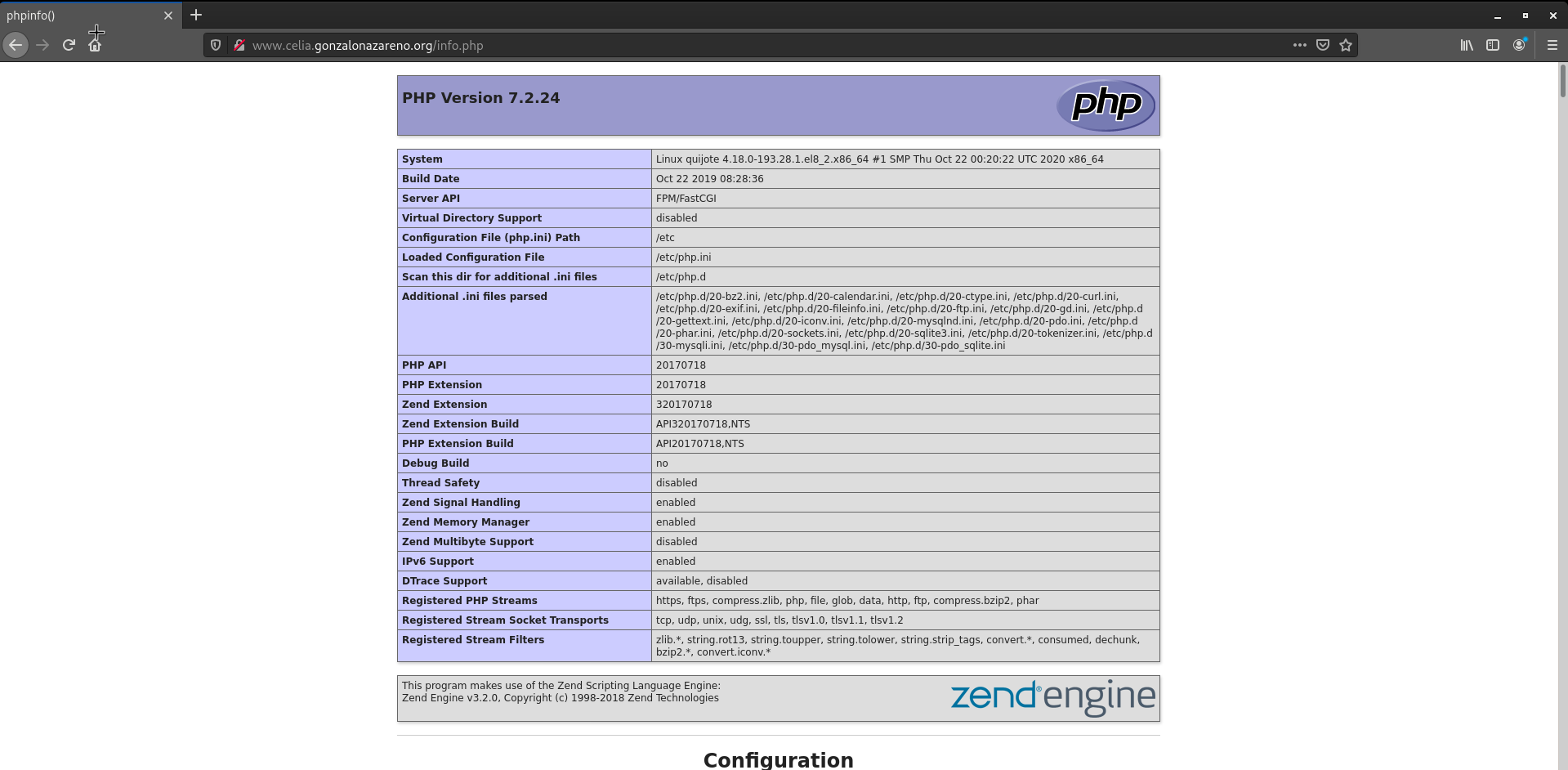
En quijote (CentOs)(Servidor que está en la DMZ) vamos a instalar un servidor web apache. Configura el servidor para que sea capaz de ejecutar código php (para ello vamos a usar un servidor de aplicaciones** php-fpm**). Entrega una captura de pantalla accediendo a www.tunombre.gonzalonazareno.org/info.php donde se vea la salida del fichero info.php. Investiga la reglas DNAT de cortafuegos que tienes que configurar en dulcinea para, cuando accedemos a la IP flotante se acceda al servidor web.
2. Conceptos:
Si quieres ver una introducción de Apache 2.4 esta es tu página, antes de proceder con esta guía. En este repositorio se dan los conceptos básicos y las ventajas de usar Apache2, así como su instalación en Debian/Ubuntu y además una guía para crear virtualhosting con el mismo.
3. Instalar Apache2
Apache se encuetra disponible en los repositorios de CentOS, lo vamos a instalar con dnf
sudo dnf install httpd
Lo iniciamos y comprobamos que está funcionando
[centos@quijote ~]$ sudo systemctl start httpd
[centos@quijote ~]$ sudo systemctl status httpd
● httpd.service - The Apache HTTP Server
   Loaded: loaded (/usr/lib/systemd/system/httpd.service; disabled; vendor preset: disabled)
   Active: active (running) since Tue 2021-01-12 17:21:47 CET; 2s ago
     Docs: man:httpd.service(8)
 Main PID: 38523 (httpd)
   Status: "Started, listening on: port 80"
    Tasks: 213 (limit: 2731)
   Memory: 21.3M
   CGroup: /system.slice/httpd.service
           ├─38523 /usr/sbin/httpd -DFOREGROUND
           ├─38524 /usr/sbin/httpd -DFOREGROUND
           ├─38525 /usr/sbin/httpd -DFOREGROUND
           ├─38526 /usr/sbin/httpd -DFOREGROUND
           └─38527 /usr/sbin/httpd -DFOREGROUND

Jan 12 17:21:47 quijote systemd[1]: Starting The Apache HTTP Server...
4. Configurar el firewall
sudo firewall-cmd --permanent --add-service=https
sudo firewall-cmd --zone=public --permanent --add-service=http
sudo firewall-cmd --reload
5. Crear virtualhost
Creamos los directorios ‘sites-enabled’ y ‘sites-avaliable’ y le indicamos que vamos a tener nuestros virtualhost en esas carpetas
sudo mkdir /etc/httpd/sites-enabled
sudo mkdir /etc/httpd/sites-available
sudo nano /etc/httpd/conf/httpd.conf
sudo nano /etc/httpd/conf/httpd.conf
/etc/httpd/conf/httpd.conf
IncludeOptional sites-enabled/*.conf
Creamos el documentroot y el html principal
sudo mkdir /var/www/iesgn
sudo nano /var/www/iesgn/index.html
Crearemos una carpeta para el log de manera que podamos ver los errores
sudo mkdir /var/www/iesgn/log
Vemos los permisos que tiene el documenroot y nos aseguramos de que están correctos
[centos@quijote ~]$ ls -l /var/www/
total 0
drwxr-xr-x. 2 root root  6 Nov  4 04:23 cgi-bin
drwxr-xr-x. 2 root root  6 Nov  4 04:23 html
drwxr-xr-x. 3 root root 35 Jan 13 10:59 iesgn
Creamos el fichero de configuración de nuestro virtualhost
sudo nano /etc/httpd/sites-availble/celia.gonzalonazareno.conf
 <VirtualHost *:80>
    ServerName www.celia.gonzalonazareno.org
    DocumentRoot /var/www/iesgn
    ErrorLog /var/www/iesgn/log/error.log
    CustomLog /var/www/iesgn/log/requests.log combined
</VirtualHost>
Creamos el enlace y vemos que se ha creado correctamente
[centos@quijote ~]$ sudo ln -s /etc/httpd/sites-available/celia.gonzalonazareno.org.conf /etc/httpd/sites-enabled/

[centos@quijote ~]$ cat /etc/httpd/sites-enabled/celia.gonzalonazareno.org.conf
<VirtualHost *:80>
    ServerName www.celia.gonzalonazareno.org
    DocumentRoot /var/www/iesgn
    ErrorLog /var/www/iesgn/log/error.log
    CustomLog /var/www/iesgn/log/requests.log combined
</VirtualHost>
Ejecutamos el siguiente comando para configurar una política universal de Apache:
sudo setsebool -P httpd_unified 1
Reiniciamos el servicio y comprobamos que está funcionando
lines 1-19/19 (END)...skipping...
● httpd.service - The Apache HTTP Server
   Loaded: loaded (/usr/lib/systemd/system/httpd.service; disabled; vendor preset: disabled)
   Active: active (running) since Wed 2021-01-13 11:17:18 CET; 1min 12s ago
     Docs: man:httpd.service(8)
 Main PID: 39646 (httpd)
   Status: "Running, listening on: port 80"
    Tasks: 213 (limit: 2731)
   Memory: 21.3M
   CGroup: /system.slice/httpd.service
           ├─39646 /usr/sbin/httpd -DFOREGROUND
           ├─39647 /usr/sbin/httpd -DFOREGROUND
           ├─39648 /usr/sbin/httpd -DFOREGROUND
           ├─39649 /usr/sbin/httpd -DFOREGROUND
           └─39650 /usr/sbin/httpd -DFOREGROUND

Jan 13 11:17:17 quijote systemd[1]: Starting The Apache HTTP Server...
Jan 13 11:17:18 quijote httpd[39646]: AH00558: httpd: Could not reliably determine the server's fully qu>
Jan 13 11:17:18 quijote systemd[1]: Started The Apache HTTP Server.
Jan 13 11:17:18 quijote httpd[39646]: Server configured, listening on: port 80
Ahora tenemos que ir a Dulcinea y agregar una regla DNAT con iptables para redirigir el trafico y se pueda acceder a la web por el puerto 80
debian@dulcinea:~$ sudo iptables -t nat -A PREROUTING -p tcp --dport 80 -i eth0 -j DNAT --to 10.0.2.4:80

debian@dulcinea:~$ sudo iptables -t nat -L -nv
Chain PREROUTING (policy ACCEPT 0 packets, 0 bytes)
 pkts bytes target     prot opt in     out     source               destination
   23  2314 DNAT       udp  --  eth0   *       0.0.0.0/0            0.0.0.0/0            udp dpt:53 to:10.0.1.2:53
    0     0 DNAT       tcp  --  eth0   *       0.0.0.0/0            0.0.0.0/0            tcp dpt:80 to:10.0.2.4:80

Chain INPUT (policy ACCEPT 0 packets, 0 bytes)
 pkts bytes target     prot opt in     out     source               destination

Chain POSTROUTING (policy ACCEPT 0 packets, 0 bytes)
 pkts bytes target     prot opt in     out     source               destination
 2122  163K MASQUERADE  all  --  *      eth0    10.0.1.0/24          0.0.0.0/0
  679 48548 MASQUERADE  all  --  *      eth0    10.0.2.0/24          0.0.0.0/0

Chain OUTPUT (policy ACCEPT 0 packets, 0 bytes)
 pkts bytes target     prot opt in     out     source               destination
Nos aseguramos que en nuestra máquina física tenemos en el /etc/resolv.conf el servidor dns con la ip de dulcinea y la dirección del sitio web asociada la ip de dulcinea en el /etc/hosts, ya que no estamos conectando desde casa.
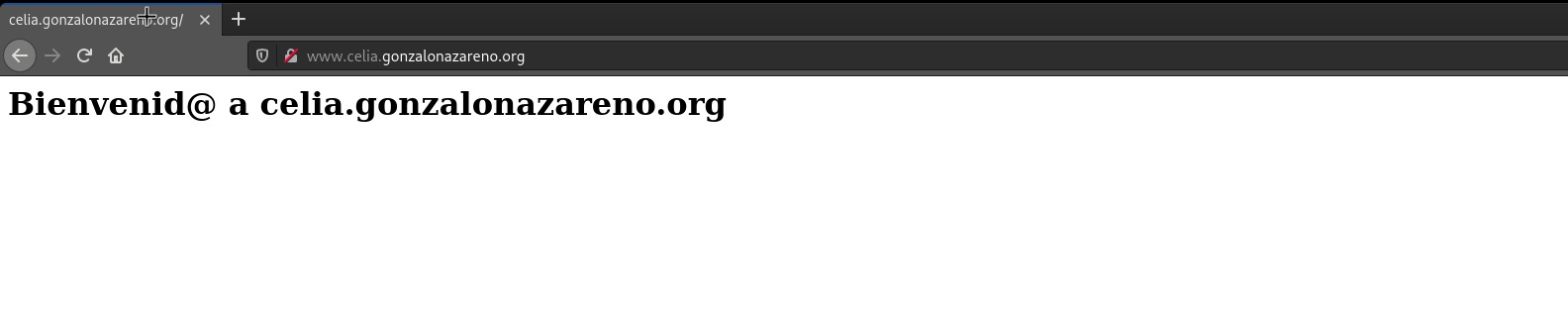
Comprobamos que podemos acceder a la web
Instalación de php-fpm
Para ello debemos ejecutar lo siguiente
sudo dnf install php php-fpm php-gd php-mysqlnd
Habilitamos e iniciamos el servicio
[centos@quijote ~]$ sudo systemctl enable php-fpm
Created symlink /etc/systemd/system/multi-user.target.wants/php-fpm.service → /usr/lib/systemd/system/php-fpm.service.
[centos@quijote ~]$ sudo systemctl start php-fpm
Ahora tenemos que editar el fichero de configuración de nuestro virtualhost para poder servir php, le agregamos lo siguiente:
/etc/httpd/sites-available/celia.gonzalonazareno.org.conf
<Proxy "unix:/run/php-fpm/www.sock|fcgi://php-fpm">
        ProxySet disablereuse=off
</Proxy>

<FilesMatch \.php$>
        SetHandler proxy:fcgi://php-fpm
</FilesMatch>
Una vez modificado el archivo tenemos que crear un fichero .php indispensable para ver que funciona
sudo nano /var/www/iesgn/info.php
info.php
<?php phpinfo(); ?>
Comprobamos que funciona