Celia Garcia Marquez
November 11, 2020
Instalación de un entorno LAMP
Warning: This information may be outdated. Please note the date of the post.
Instalación de un servidor LAMP
Crea una instancia de vagrant basado en un box de debian o ubuntu
- Primero creamos el fichero Vagrantfile
nano Vagrantfile
- Le añadimos estas lineas para configurar nuestra máquina debian
# -*- mode: ruby -*-
# vi: set ft=ruby :

Vagrant.configure("2") do |config|
        config.vm.box = "debian/buster64"
        config.vm.hostname = "debian-cms"
        config.vm.network :public_network, :bridge=>"enp5s0"
end
- Levantamos la máquina
vagrant up
- Cuando esté lista entramos en la máquina por ssh
vagrant ssh
- Una vez dentro le añadimos los repositorios esenciales y actualizamos la máquina
sudo su
nano /etc/apt/sources.list
- Dejamos la lista de repositorios de esta forma:
deb http://deb.debian.org/debian buster main
deb-src http://deb.debian.org/debian buster main

deb http://deb.debian.org/debian-security/ buster/updates main
deb-src http://deb.debian.org/debian-security/ buster/updates main

deb http://deb.debian.org/debian buster-updates main
deb-src http://deb.debian.org/debian buster-updates main
- Actualizamos
apt update
apt upgrade
Instala en esa máquina virtual toda una pila LAMP
¿Qué es LAMP?
LAMP es el acŕonimo usado para describir un sistema de infraestructura de internet que usa las siguientes herramientas:
- Linux, como sistema operativo. En este caso usaremos la distribución Debian Buster.
- Apache, que va ser nuestro servidor web.
- MySQL/MariaDB, que va ser nuestro gestor de base de datos.
- PHP, como lenguaje de programación.
Instalacion de Apache Web Server
- Instalamos apache2
apt install apache2 apache2-utils
- Vemos la version de apache
root@debian-cms:/home/vagrant# apache2 -v
Server version: Apache/2.4.38 (Debian)
Server built:   2020-08-25T20:08:29
- Comprobamos que apache está funcionando correctamente
root@debian-cms:/home/vagrant# systemctl status apache2
● apache2.service - The Apache HTTP Server
   Loaded: loaded (/lib/systemd/system/apache2.service; enabled; vendor preset: enabled)
   Active: active (running) since Sun 2020-11-01 13:38:34 GMT; 9min ago
     Docs: https://httpd.apache.org/docs/2.4/
 Main PID: 26137 (apache2)
    Tasks: 6 (limit: 544)
   Memory: 10.8M
   CGroup: /system.slice/apache2.service
           ├─26137 /usr/sbin/apache2 -k start
           ├─26141 /usr/sbin/apache2 -k start
           ├─26142 /usr/sbin/apache2 -k start
           ├─26143 /usr/sbin/apache2 -k start
           ├─26144 /usr/sbin/apache2 -k start
           └─26145 /usr/sbin/apache2 -k start

Nov 01 13:38:34 debian-cms systemd[1]: Starting The Apache HTTP Server...
Nov 01 13:38:34 debian-cms apachectl[26133]: AH00558: apache2: Could not reliably determine the server's
Nov 01 13:38:34 debian-cms systemd[1]: Started The Apache HTTP Server.
lines 1-18/18 (END)
Instalación de MYSQL/MariaDB
- Instalamos nuestro gestor de base de datos de la siguiente forma
apt install mariadb-client mariadb-server
- Ahora entramos como root a mysql.
root@debian-cms:/home/vagrant# mysql -u root -p
Enter password:
Welcome to the MariaDB monitor.  Commands end with ; or \g.
Your MariaDB connection id is 49
Server version: 10.3.25-MariaDB-0+deb10u1 Debian 10

Copyright (c) 2000, 2018, Oracle, MariaDB Corporation Ab and others.

Type 'help;' or '\h' for help. Type '\c' to clear the current input statement.

MariaDB [(none)]>
- Creamos la base de datos, la llamaremos ‘cms’.
MariaDB [(none)]> create database cms;
Query OK, 1 row affected (0.002 sec)
- Creamos un usuario y le damos los privilegios para usar esa base de datos
MariaDB [(none)]> create user 'cgm'@'localhost';
Query OK, 0 rows affected (0.005 sec)

MariaDB [(none)]> grant all privileges on cms.* to 'cgm'@'localhost' identified by 'cgm';
Query OK, 0 rows affected (0.002 sec)
Instalación de PHP
- Instalamos PHP, el módulo para conectarnos a la base de datos y el módulo que nos permite conectarnos al sevidor.
apt install php php-mysql libapache2-mod-php php-gd
- Vemos la version de php
root@debian-cms:/home/vagrant# php -v
PHP 7.3.19-1~deb10u1 (cli) (built: Jul  5 2020 06:46:45) ( NTS )
Copyright (c) 1997-2018 The PHP Group
Zend Engine v3.3.19, Copyright (c) 1998-2018 Zend Technologies
    with Zend OPcache v7.3.19-1~deb10u1, Copyright (c) 1999-2018, by Zend Technologies
Con esto ya tendríamos LAMP operativo en nuestro sistema.
FUNCIONAMIENTO
Creamos un index.html sencillo dentro de nuestro directorio /var/www/html
Vemos que funciona nuestro entorno LAMP
Mariadb en funcionamiento:
root@debian-cms:/home/vagrant# systemctl status mariadb
● mariadb.service - MariaDB 10.3.25 database server
   Loaded: loaded (/lib/systemd/system/mariadb.service; enabled; vendor preset: enabled)
   Active: active (running) since Fri 2020-11-06 12:03:53 GMT; 6h ago
     Docs: man:mysqld(8)
           https://mariadb.com/kb/en/library/systemd/
  Process: 414 ExecStartPre=/usr/bin/install -m 755 -o mysql -g root -d /var/run/mysqld (code=exited, sta
  Process: 425 ExecStartPre=/bin/sh -c systemctl unset-environment _WSREP_START_POSITION (code=exited, st
  Process: 431 ExecStartPre=/bin/sh -c [ ! -e /usr/bin/galera_recovery ] && VAR= ||   VAR=`cd /usr/bin/..
  Process: 515 ExecStartPost=/bin/sh -c systemctl unset-environment _WSREP_START_POSITION (code=exited, s
  Process: 517 ExecStartPost=/etc/mysql/debian-start (code=exited, status=0/SUCCESS)
 Main PID: 479 (mysqld)
   Status: "Taking your SQL requests now..."
    Tasks: 30 (limit: 544)
   Memory: 149.6M
   CGroup: /system.slice/mariadb.service
           └─479 /usr/sbin/mysqld

Nov 06 12:03:52 debian-cms systemd[1]: Starting MariaDB 10.3.25 database server...
Nov 06 12:03:52 debian-cms mysqld[479]: 2020-11-06 12:03:52 0 [Note] /usr/sbin/mysqld (mysqld 10.3.25-Mar
Nov 06 12:03:52 debian-cms mysqld[479]: 2020-11-06 12:03:52 0 [Warning] Could not increase number of max_
Nov 06 12:03:53 debian-cms systemd[1]: Started MariaDB 10.3.25 database server.
Nov 06 12:03:53 debian-cms /etc/mysql/debian-start[531]: Checking for insecure root accounts.
Nov 06 12:03:53 debian-cms /etc/mysql/debian-start[535]: Triggering myisam-recover for all MyISAM tables
lines 1-23/23 (END)
Apache en funcionamiento:
root@debian-cms:/home/vagrant# systemctl status apache2
● apache2.service - The Apache HTTP Server
   Loaded: loaded (/lib/systemd/system/apache2.service; enabled; vendor preset: enabled)
   Active: active (running) since Fri 2020-11-06 12:03:52 GMT; 6h ago
     Docs: https://httpd.apache.org/docs/2.4/
  Process: 416 ExecStart=/usr/sbin/apachectl start (code=exited, status=0/SUCCESS)
 Main PID: 455 (apache2)
    Tasks: 9 (limit: 544)
   Memory: 34.6M
   CGroup: /system.slice/apache2.service
           ├─455 /usr/sbin/apache2 -k start
           ├─480 /usr/sbin/apache2 -k start
           ├─481 /usr/sbin/apache2 -k start
           ├─482 /usr/sbin/apache2 -k start
           ├─483 /usr/sbin/apache2 -k start
           ├─484 /usr/sbin/apache2 -k start
           ├─588 /usr/sbin/apache2 -k start
           ├─589 /usr/sbin/apache2 -k start
           └─590 /usr/sbin/apache2 -k start

Nov 06 12:03:52 debian-cms systemd[1]: Starting The Apache HTTP Server...
Nov 06 12:03:52 debian-cms apachectl[416]: AH00558: apache2: Could not reliably determine the server's fu
Nov 06 12:03:52 debian-cms systemd[1]: Started The Apache HTTP Server.
lines 1-22/22 (END)

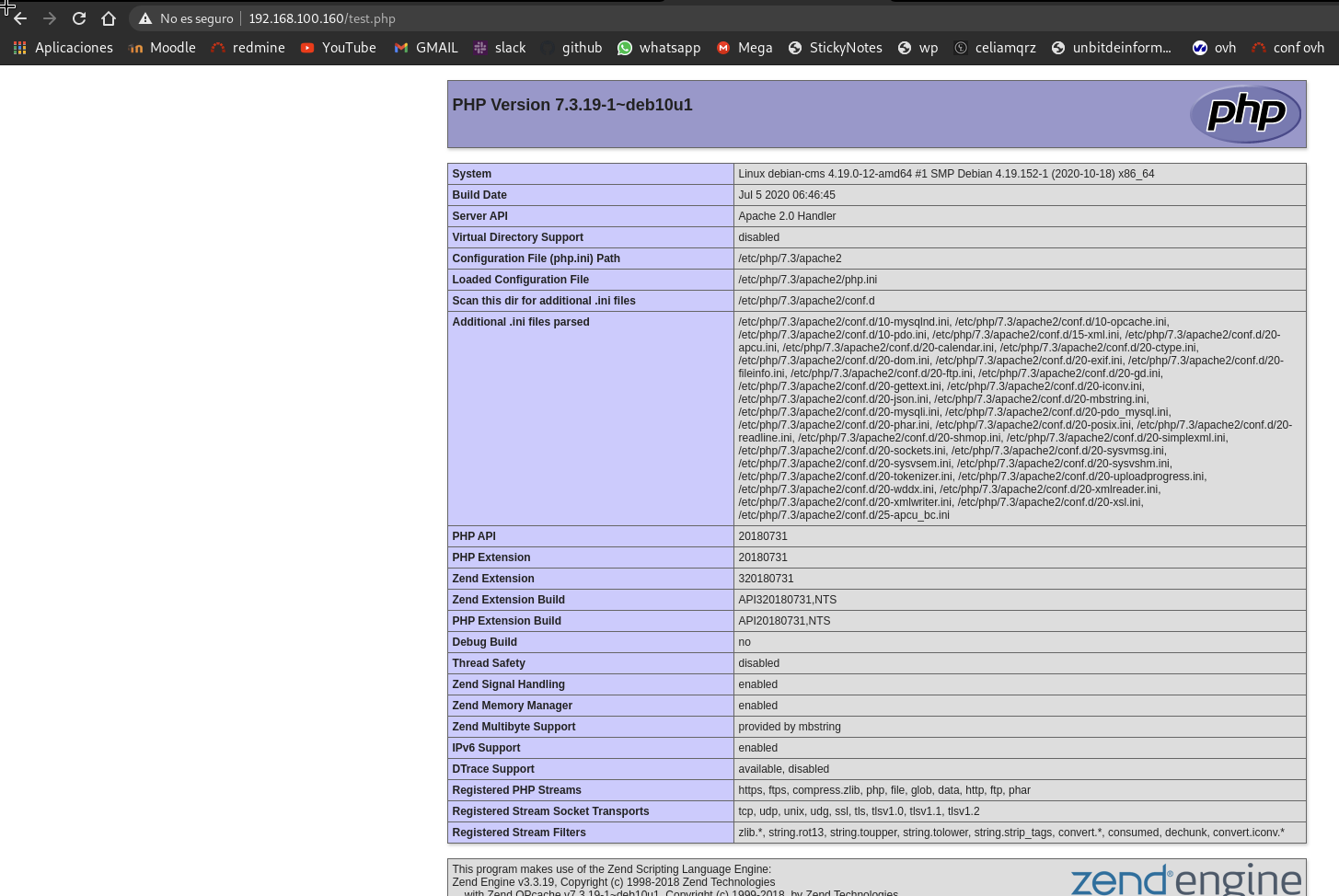
php en funcionamiento: